 Tailride
Google Sheets
Automatically send processed invoices to a Google Sheets spreadsheet.
Overview
If you have a Google account, you can select a Google Sheet to send all processed invoices to.
Automatically, a new processed invoice will create a new row in the Google Sheet. You can also manually push invoices to the Google Sheet.
Prerequisites
- At least one Google account must be connected
Setup Instructions
Connect a Google account if you haven't already
Click the + Connect Sheet, this will open a modal to select a Google account and a Google Sheet to send the invoices to
Select the Google account you want to use for the integration
Click the "Select a Google Sheet" button on the modal and select the sheet you want to send the invoices to. You will only see sheets for the selected account
If we don't have Google Sheet access for that account, you will be asked to grant access
Select and sort the fields you want to include in the invoice rows or just use the default fields
Choosing Fields
The Google Sheets settings let you enable, disable, and reorder the columns written for each invoice — amounts, dates, vendor details, payment info, and more.
Optional fields that are disabled by default include:
- Invoice UUID — Tailride's internal unique identifier of the invoice. Enable it if you need a stable ID to reference invoices from other tools or scripts, since invoice numbers from vendors are not always unique.
- Drive File URL / OneDrive File URL — links to the stored invoice file.
- Items (JSON) — the invoice line items as JSON, including the account code and name assigned by automatic coding. The row is written as soon as the invoice is processed; once coding finishes, Tailride updates this cell in place so it reflects the final line-item accounts. Enabling Invoice UUID alongside makes this update more robust: if you sort or delete rows in the sheet, Tailride verifies the row still belongs to the invoice before writing.
Pushing Data to Google Sheets
By default, when a new invoice is processed, it will create a new row in the Google Sheet and you don't have to push it manually.
Still, you can push data to a Google Sheet by clicking the "Add to Sheet" button on the actions dropdown for an invoice.
Also, if you select multiple invoices, you can push all of them to the Google Sheet at once using the bulk actions bar.
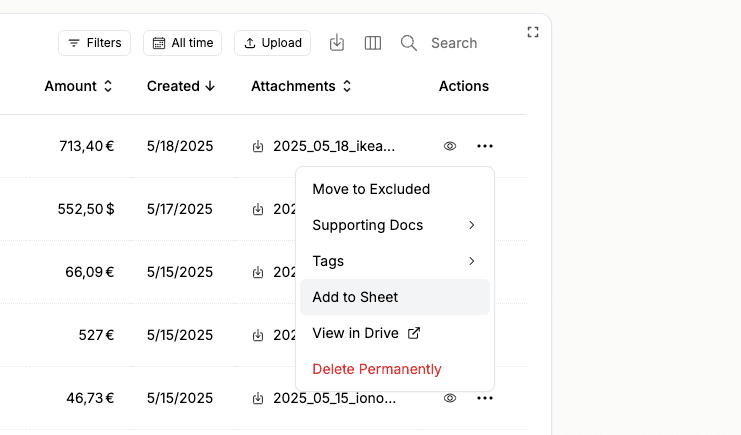
If you don't see this button, try refreshing the dashboard.