 Tailride
Overview
Using the Tailride Chrome Extension to fetch invoices from web portals.
Installation
- Install Extension: Click the "Install Extension" link provided on the dashboard card or the store page: Install Extension (Chrome) or Edge Add-ons
- Add to Chrome: Follow the prompts in the Chrome Web Store to add the extension to your browser.
Prefer it to run in the background?
The desktop app runs the same portal collection on a schedule from the menu bar or system tray, with an optional password vault and unattended 2FA.
Video Tutorial
Using the Extension
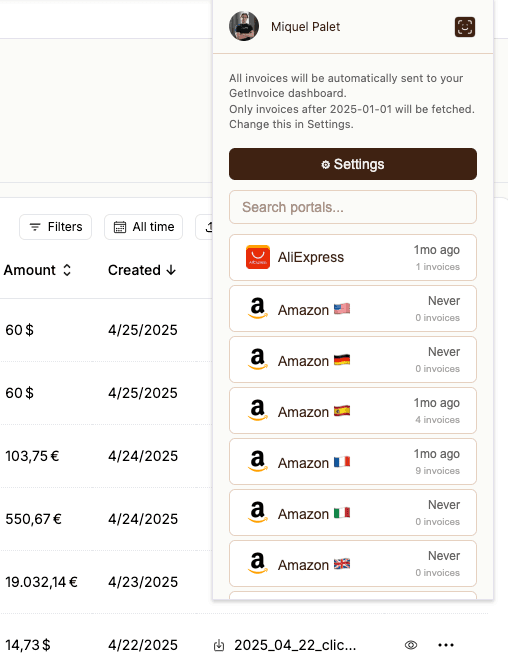
- Log In: Once installed, click the Tailride extension icon in your browser toolbar. You'll need to be logged in to Tailride to use the extension.
- Navigate to Portals: Click the portal button from which you want to extract invoices (e.g.,
amazon.com,stripe.com). The extension will automatically open a new tab on the portal billing page and start retrieving invoices on the background. You don't have to do anything else, just wait for the tab to close. - See Extracted Invoices: Once the tab closes, if you refresh your dashboard, you'll see the extracted invoices.
Background Processing
Most of the time a tab will be closed automatically after the invoices are extracted. If it doesn't, you can close it manually after some time.
Suggestions from Bank Statements
If your bank statements have payments without an invoice from a supplier the extension can collect from, the popup lists them under From your bank statements, with the number of payments still missing an invoice. Open turns the portal on (or installs it if it isn't in your list yet) and starts collecting from it right away, as a click on it in the list does. If the portal asks you to sign in, sign in and click it in the list below. For suppliers with country sites, such as Amazon, the site your payments went to is used (for example amazon.ca for AMAZON.CA or CAD payments). Where that site has a Business and a Personal portal, the row shows Business and Personal instead of Open: pick your account type, and that portal is turned on and collected from. The other type would find no orders. Suppliers that need an account ID first (Vercel, TikTok Ads, HubSpot, Google Cloud, Meta Ads) only get their page opened; fill in the ID in the list, then collect. A portal is no longer suggested once it's set up and has been collected from.
The extension never changes your start date on its own. If the payments are older than that date, the suggestion says so, for example "Payments from 22 Jan 2026 are before your start date (1 Mar 2026)", and shows no Open button. The link next to it opens the settings: set an earlier date there and Open appears. For a portal you already collect from, the payments are then fetched as described below.
Fetching invoices for statement payments
When a portal you already collect from can provide a missing invoice, the box also says how many payments are waiting, from five days after each payment (invoices often arrive late):
- With scheduled collection turned on, the extension fetches them on its own, at most every half hour, from the portals you chose for scheduled collection. It reaches back about a month before each payment, even if the portal was collected from recently. Your start date stays as it is and payments before it are skipped; the statement in Tailride then says that collection starts after the payment. After you move the start date back, they're picked up at the next scheduled check.
- Fetch now does it at once from any portal in your list, scheduled collection or not.
Collecting works as in a scheduled run: in background tabs, with the browser open, and only for portals you are signed in to in this browser. A portal that needs you to sign in is flagged in the list, and the statement in Tailride says Sign in to … so it can be fetched. If the invoice still hasn't turned up, it's tried again a few days later, at most three times. While Tailride Desktop is in use for the same account, the extension leaves this to the desktop app.
Using Tailride Desktop too?
When the same account also uses Tailride Desktop, the suggestions appear only in the desktop app.
Opening the Extension
- From the Dashboard: The
Open Extensionbutton on the dashboard announcement card attempts to directly open the extension's popup if it's installed. If not installed, it redirects to the Chrome Web Store. - From the Toolbar: Click the Tailride icon in your Chrome extensions toolbar.
Pinning the Icon
For easy access, make sure you've pinned the Tailride icon to your toolbar! Click the puzzle piece icon in Chrome, find Tailride, and click the pin.